
How To Install ClockworkMod Recovery On The Orange San Francisco / ZTE Blade
Page 3 of 5 – How To Install Custom ROMs / Android 2.2 (FroYo) from scratch on the Orange San Francisco / ZTE Blade
Introduction » Root » Install ClockworkMod Recovery » Choose and install a ROM » Comments
STOP AND READ OR YOU MAY BRICK YOUR PHONE!
There are two generations of this phone. If you have the first generation (G1), you are safe and you can follow this guide.
If you have the second generation (G2), DO NOT continue with this guide or you will brick your phone. Follow the G2 guide instead.
To check what generation your phone is, download Ask Mr Pigfish from the market, install and run.
At the top of the screen, the app will tell you whether you have a "G1" (first generation phone) or "G2" (second generation phone). Click here for an example.
- If you have a G1, you are safe to continue with this guide.
- If you have a G2, STOP or you will brick your phone. Follow the G2 guide instead.
ClockworkMod Recovery is a custom recovery that allows you to install custom ROMs (aka the Android OS), such as custom Android 2.2 (FroYo) ROMs. It can also be used to wipe data from the phone and install minor updates, such as themes and patches. This version of ClockworkMod Recovery 3.0.0.6 supports both the TFT and OLED versions of the Orange San Francisco / ZTE Blade.
ClockworkMod Recovery is available for nearly every Android phone, including Android phones such as the Samsung Galaxy S, Nexus One and HTC Desire.
Method 1 - Do it straight from your phone without a computer (Recommended)
If you didn't read the previous page, you must root your phone before you start. You can do this straight from your phone and it takes less than 2 minutes. Follow the instructions on Page 2 to root your phone.
- Make sure you are signed into your Google Account and you have launched the Market at least once in order to accept the Terms and Conditions. You can use a Gmail account as your Google Account.
- Open the Browser from the app list on your phone.
- Visit tinyurl.com/esfile
- Install ES File Explorer (Tap "FREE" then "OK" - It may be "Install" then "OK" on your phone).
- Open the Browser from the app list on your phone.
- Visit tinyurl.com/clockmd5
- Install ManD5 (Tap "FREE" then "OK" - It may be "Install" then "OK" on your phone).
- Open the Browser from the app list on your phone.
- Visit tinyurl.com/clocknow2
- A file named latest.zip (3.55MB) will begin to download and should take no more than a minute to complete. Pull down the notification bar from the top of the screen to check the progress.
- Open ES File Explorer from the app list.
- Tap download (you may need to scroll to find it).
- Tap AND hold (long press) on latest.zip
- Tap Extract to.
- Tap Current path.
- Tap OK.
- Open ManD5 from the app list on your phone.
- Tap Select a file.
- Tap /download (you may need to scroll to find it).
- Tap /clock.img
- Tap OK.
- A MD5 hash will be generated. Check the md5 hash is 4b949d51c54501e1a3dd0a4c6095766e. If not, the file did not download correctly. Delete all previous files you download using ES File Explorer and follow from Step 8 again.

The generated MD5 Hash for clock.img - Open Settings from the app list on the phone.
- Tap Applications.
- Make sure the box is ticked next to “Unknown sources – Allow installation of non-Market applications”.
- Open the Browser from the app list on your phone.
- Visit tinyurl.com/recoverapp2
- A small file will being to download and will take no more than a few seconds to complete.
- Pull down the notification bar from the top of the screen. Once the download completes, tap recoveryM.apk.

Press and hold the notification bar and drag down to view. - Tap Install.
- Tap Open.
- Superuser will ask for permission. Tap OK.
- Tap the Recovery tab.
- Tap Install Recovery.
- Tap /sdcard/download/clock.img
- Tap OK.
- Wait for the Installing box to disappear.
- Done!
Troubleshooting
If you get the error message...
"<Untitled> Download unsuccessful"
or
"Cannot download. The content is not supported on this phone"
...you probably haven’t installed ES File Explorer. If you have installed it, try uninstalling and reinstalling – tinyurl.com/esfile
If you still receive the error message, turn off your phone and then turn it on again.
Troubleshooting
If you get the following error message…
"The application Recovery Manager (process com.podtwo.RecoveryManager) has stopped unexpectedly. Please try again."
…make sure you have rooted your phone. Instructions on how to root can be found on the previous page.
If you have already rooted your phone, root it again. Then from the app list on your phone, go to Settings -> Manage Applications -> Recovery Manager -> Clear data -> OK. Now turn off your phone and turn it on again. Launch Recovery Manager from the app list on your phone and follow from Step 32.
Thanks to Sebastian404 for the ZTE-Blade Recovery Manager.
Method 2 - Old method and requires a computer (Not recommended)
You should only use this method if you cannot boot your phone.
Instructions for Windows 7, Windows Vista and Windows XP
Before following these instructions, please make sure you have installed the USB drivers for the Orange San Francisco / ZTE Blade. This is not necessary for Linux or Mac users.
- Unplug the phone from the charger/PC and take out the battery.
- Replace the battery.
- Turn on the phone whilist holding the Volume Up button on the side of your phone. Continue to hold the Volume Up button for 5 seconds.
- The green android logo will stay on the screen.
- Plug the phone into your PC.
- Download this zip file and extract anywhere.
- Double click the fastboot folder.
- Double click on install. It may be called install.bat on your PC.
- Your phone should automatically reboot. You can close the program and unplug the phone from your PC.
If the program freezes on waiting for device, it is likely you haven't installed the USB Drivers. Follow this guide to install them. It the problem still persists, try switching to another USB port on your computer.
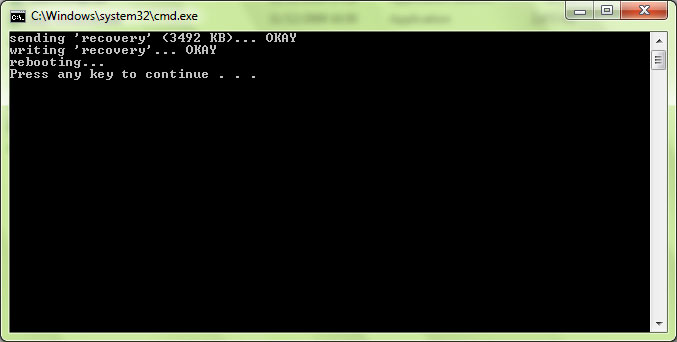
ClockworkMod Recovery successfully installed on the Oranage San Francisco / ZTE Blade. Press any key to close the program. You can safely remove the phone from your PC.
The Alternative Manual Method
If you want, you may install ClockworkMod Recovery using the command prompt manually with Windows. This is not necessary and is only recommended for advanced users.
- Unplug the phone from the charger/PC and take out the battery.
- Replace the battery.
- Turn on the phone whilist holding the Volume Up button on the side of your phone. Continue to hold the Volume Up button for 5 seconds.
- The green android logo will stay on the screen.
- Plug the phone into your PC.
- Download this zip file and extract to C:\
- Open the Command Prompt (Start -> Run -> cmd)
- Run the following commands:
- Your phone should now reboot. You can close the command prompt and unplug the phone from your PC.
cd C:\fastboot
fastboot-windows flash recovery clock.img
fastboot-windows reboot
Instructions for Mac
- Unplug the phone from the charger/Mac and take out the battery.
- Replace the battery.
- Turn on the phone whilist holding the Volume Up button on the side of your phone. Continue to hold the Volume Up button for 5 seconds.
- The green android logo will stay on the screen.
- Plug the phone into your Mac.
- Download this zip file and extract.
- Open Terminal (Applications -> Utilities -> Terminal)
- Navigate to the fastboot folder (the zip file you just extracted) in Terminal.
- Run the following commands:
- Your phone should now reboot. You can close Terminal and unplug the phone from your Mac.
./fastboot-mac flash recovery clock.img
./fastboot-mac reboot
Instructions on how to use the Mac Terminal can be found here.
Instructions for Linux
- Unplug the phone from the charger/PC and take out the battery.
- Replace the battery.
- Turn on the phone whilist holding the Volume Up button on the side of your phone. Continue to hold the Volume Up button for 5 seconds.
- The green android logo will stay on the screen.
- Plug the phone into your PC.
- Download this zip file and extract.
- Open Terminal and navigate to the fastboot folder (the zip file you just extracted) in Terminal.
- Run the following commands:
- Your phone should now reboot. You can close Terminal and unplug the phone from your PC.
chmod +x fastboot-linux
sudo ./fastboot-linux flash recovery clock.img
sudo ./fastboot-linux reboot
Newbie Central
Guides and Tutorials
Help
- Support Forum