

Install the USB drivers
Page 2 of 8 - How to unlock the Orange San Francisco II for free
Introduction » Install the USB drivers » Download required files » Check FTM mode » Install QPST & Backup qcn » Restore qcn » Reinstall stock ROM » Comments
Your phone needs to communicate with your computer properly, so you need to install the correct USB drivers.
Instructions for Windows 7
- Open Settings from the app list on your phone.
- Tap Applications.
- Tap Development.
- Make sure USB debugging is ticked.
- On your computer, download osf-ii-driver-windows.exe (click to download)
- Once downloaded, run osf-ii-driver-windows.exe and install it.
- With your phone on, connect it to your computer (use the cable included with your phone).
- A balloon might pop up in the bottom right hand corner of your screen, informing you a device is installing. You may receive an error that the installation was unsuccessful - do not worry, this is normal and you may continue.
- On your computer, press the Start button and type (or copy and paste) SystemPropertiesHardware.exe into the box, and then press enter (or click SystemPropertiesHardware.exe near the top).
- Click Device Installation Settings.
- Select Install driver software from Windows Update if it is not found on my computer.
- Click Save Changes.
- You have now installed the drivers, and you may continue to the next page.
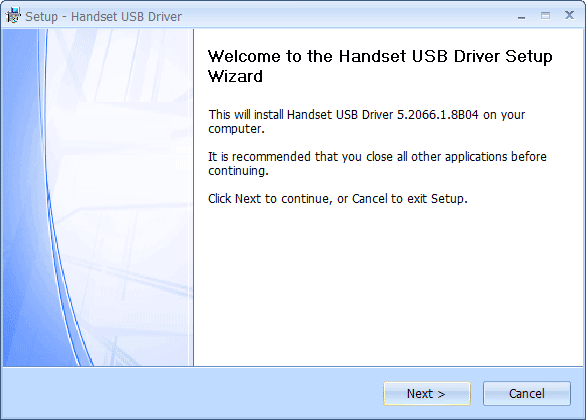
Follow the steps in osf-ii-driver-windows.exe in order to install the drivers
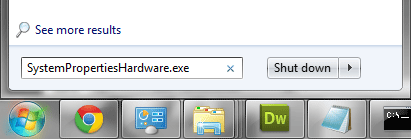
Enter SystemPropertiesHardware.exe and press the enter key.
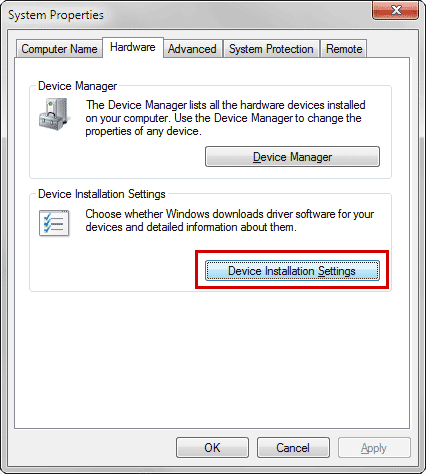
Click Device Installation Settings.
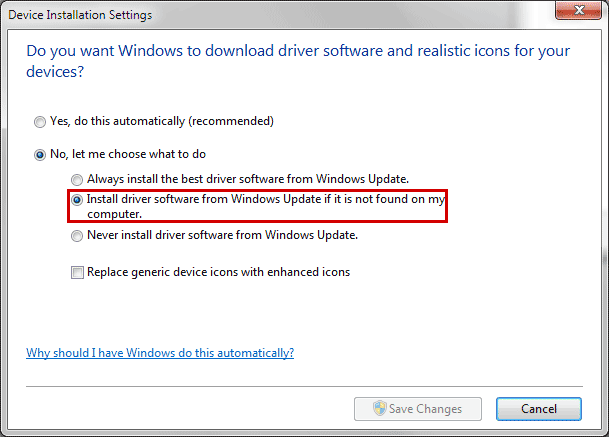
Select Install driver software from Windows Update if it is not found on my computer and click Save Changes.
Instructions for Windows Vista
- Open Settings from the app list on your phone.
- Tap Applications.
- Tap Development.
- Make sure USB debugging is ticked.
- On your computer, download osf-ii-driver-windows.exe (click to download)
- Once downloaded, run osf-ii-driver-windows.exe and install it.
- With your phone on, connect it to your computer (use the cable included with your phone).
- A balloon might pop up in the bottom right hand corner of your screen, informing you a device is installing. You may receive an error that the installation was unsuccessful - do not worry, this is normal and you may continue.
- On your computer, press the Start button and type (or copy and paste) SystemPropertiesHardware.exe into the box, and then press enter (or click SystemPropertiesHardware.exe near the top).
- Click Windows Update Driver Settings.
- Select Check for drivers automatically (recommended).
- Click OK.
- You have now installed the drivers, and you may continue to the next page.
Follow the steps in osf-ii-driver-windows.exe in order to install the drivers
Enter SystemPropertiesHardware.exe and press the enter key.
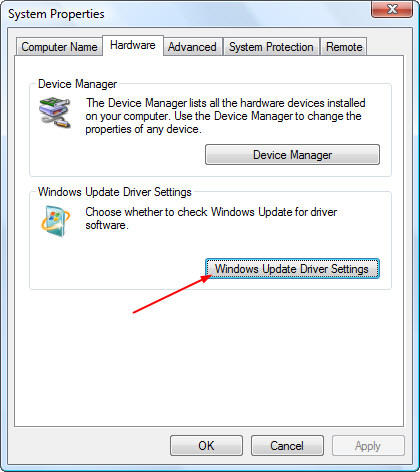
Click Windows Update Driver Settings.
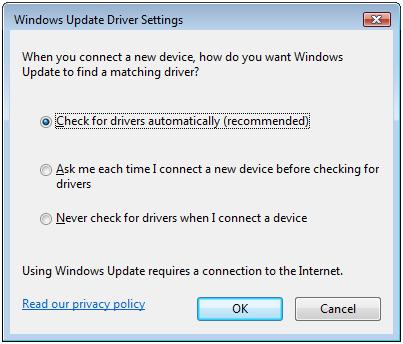
Select Check for drivers automatically (recommended) and click OK.
Instructions for Windows XP
- Open Settings from the app list on your phone.
- Tap Applications.
- Tap Development.
- Make sure USB debugging is ticked.
- On your computer, download osf-ii-driver-windows.exe (click to download)
- Once downloaded, run osf-ii-driver-windows.exe and install it.
- With your phone on, connect it to your computer (use the cable included with your phone).
- A balloon might pop up in the bottom right hand corner of your screen, informing you a device is installing. You may receive an error that the installation was unsuccessful - do not worry, this is normal and you may continue.
- You have now installed the drivers, and you may continue to the next page.
Follow the steps in osf-ii-driver-windows.exe in order to install the drivers

How to debrand / Install Custom ROMs / Android 4.0 from scratch
- 1. Introduction
- 2. Install the USB drivers
- 3. How to install ClockworkMod Recovery
- 4. How to choose and install a ROM
- 5. Comments
Popular Guides, Tutorials & Articles

How To Install Custom ROMs / Android 2.3 / Android 4.0 from scratch
- 1. Introduction
- 2. How to identify Gen 1 or Gen 2
- 3. How to root and install ClockworkMod Recovery
- 4. How to choose and install a ROM
- 5. Comments
Popular Guides, Tutorials & Articles
- How to unlock Orange San Francisco for free
- List of ROMs (updated regularly)
- An Introduction to the Orange San Francisco / ZTE Blade / ZTE Libra U-V880
- Why should I install a Custom ROM?
- What is rooting?
- What is ClockworkMod Recovery?
Other Guides, Tutorials & Articles