
Restore the qcn file
Page 6 of 8 - How to unlock the Orange San Francisco II for free
Introduction » Install the USB drivers » Download required files » Check FTM mode » Install QPST & Backup qcn » Restore qcn » Reinstall stock ROM » Comments
You're almost done! You will need to restore the osf2 qcn file - just follow the easy steps on this page.
- Make sure your phone is still connected to your computer, and you can see FTM on your phone's screen. If you cannot see FTM on your phone's screen, disconnect your phone, remove and reinsert the battery, then hold the Voulme down and Power on button on your phone until you see FTM on your phone's screen. Reconnect the phone to your computer.
- Download unlock.zip to your Desktop.
- Once completed, extract unlock.zip (or unlock) to your Desktop.
- Open the OSF2 Unlock folder on your Desktop (you just extracted it) and run download.exe (or download)
- You may get the error message "is a ATAPI device, we won't detect it". Just ignore this and click OK. The error message may pop up twice.
- You should see READY in green text below a big START button. If the START button is greyed out and you cannot click it, or you do not see READY, see Troubleshooting below.
- Click the big START button.
- On your computer, wait until you see the pop up message box "Download Successful!". This may take up to 10 minutes, so be patient. During the 10 minutes, your phone will go blank, vibrate and reboot.
- Once complete, close all the programs.
- Click Start -> All Programs -> QPST -> QPST Configuration
- Click the Ports tab.
- Click the only COM device from the list.
- Click the Enable button.
- Click Start Clients, then Software Download
- Click the Restore tab and then the second Browse button.
- A browse window will open. Select the osf2 qcn file on your Desktop (the same one you backed up on page 5).
- Click the Start button (next to the Abort button). Wait until your phone vibrates and reboots - this may take up to 10 minutes. Wait until you see ClockworkMod Recovery on your phone, as shown on the image below. Once you see ClockworkMod Recovery, close QPST Software Download and continue to the next page.
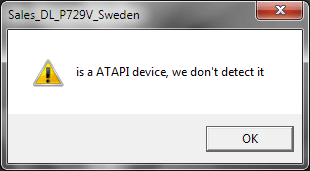
Ignore the error message and click OK.
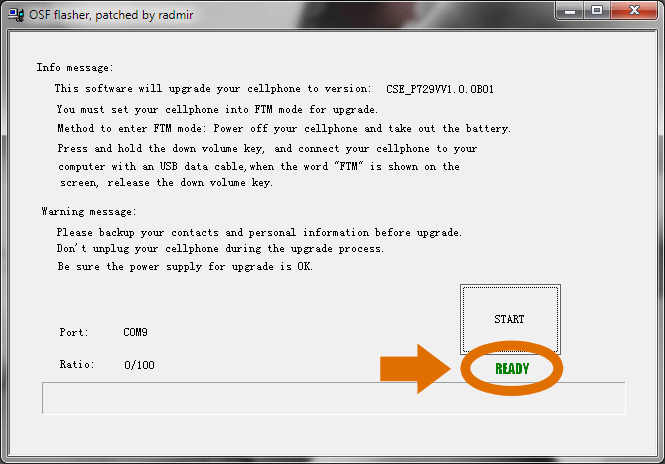
Make sure you see READY.
Troubleshooting
If you do not see READY, or the START button is greyed out, follow the steps below.
Solution 1
1. Close the program.
2. Click Start -> All Programs -> QPST -> QPST Configuration
3. Click the Ports tab.
4. Click the only COM device from the list (if there are no devices, see Solution 2)
5. Click the Disable button and then click Yes.
6. Re-open download.exe. Hopefully you should see READY.
Solution 2
1. Disconnect your phone from your computer.
2. Restart your computer.
3. Remove the battery from your phone, wait 5 seconds, and then reinsert the battery.
4. Hold the Volume down and Power on button until you see FTM on your phone's screen.
5. Connect your phone to another USB port on your computer, and then wait a minute.
6. Re-open download.exe. Hopefully you should see READY.
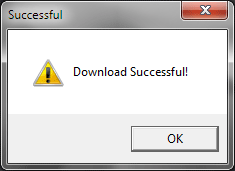
Wait until you see "Download Successful!"
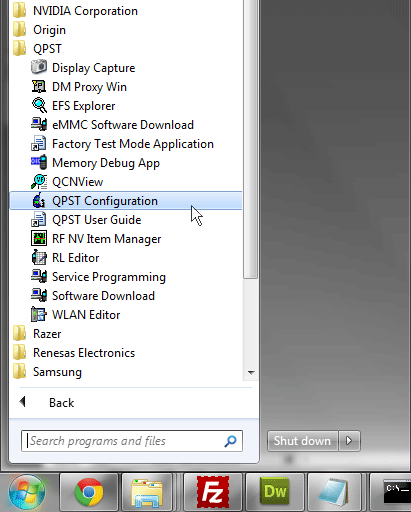
Run QPST Configuration.
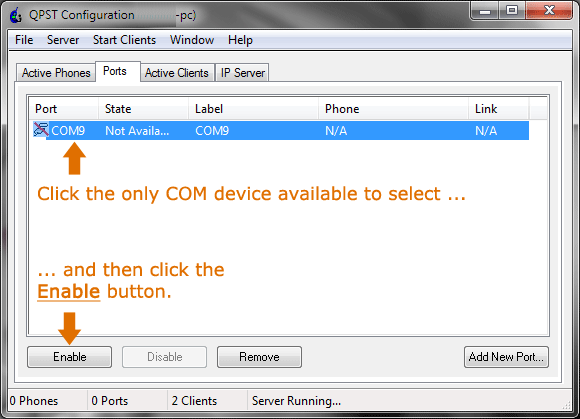
Click the only COM device listed and then click the Enable button.
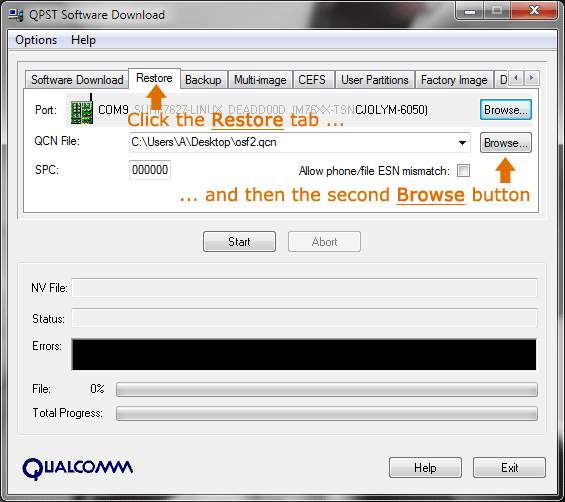
Click the Restore tab and then click the second Browse button.
Troubleshooting
If the restore process will not begin, or you get an error message, tick the checkbox next to "Allow phone/file ESN mismatch:".
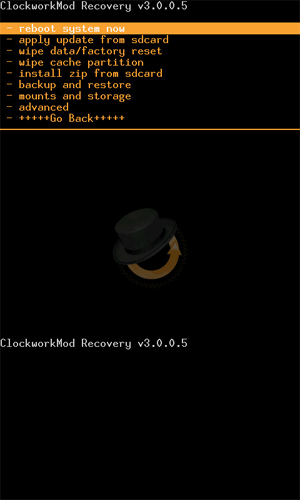
Once you see ClockworkMod Recovery, continue to the next page. Ignore the version numbers and slight differences from the image above.

How to debrand / Install Custom ROMs / Android 4.0 from scratch
- 1. Introduction
- 2. Install the USB drivers
- 3. How to install ClockworkMod Recovery
- 4. How to choose and install a ROM
- 5. Comments
Popular Guides, Tutorials & Articles

How To Install Custom ROMs / Android 2.3 / Android 4.0 from scratch
- 1. Introduction
- 2. How to identify Gen 1 or Gen 2
- 3. How to root and install ClockworkMod Recovery
- 4. How to choose and install a ROM
- 5. Comments
Popular Guides, Tutorials & Articles
- How to unlock Orange San Francisco for free
- List of ROMs (updated regularly)
- An Introduction to the Orange San Francisco / ZTE Blade / ZTE Libra U-V880
- Why should I install a Custom ROM?
- What is rooting?
- What is ClockworkMod Recovery?
Other Guides, Tutorials & Articles